How to crop an image
- Drop a photo or screenshot into the box (HEIC from an iPhone works too).
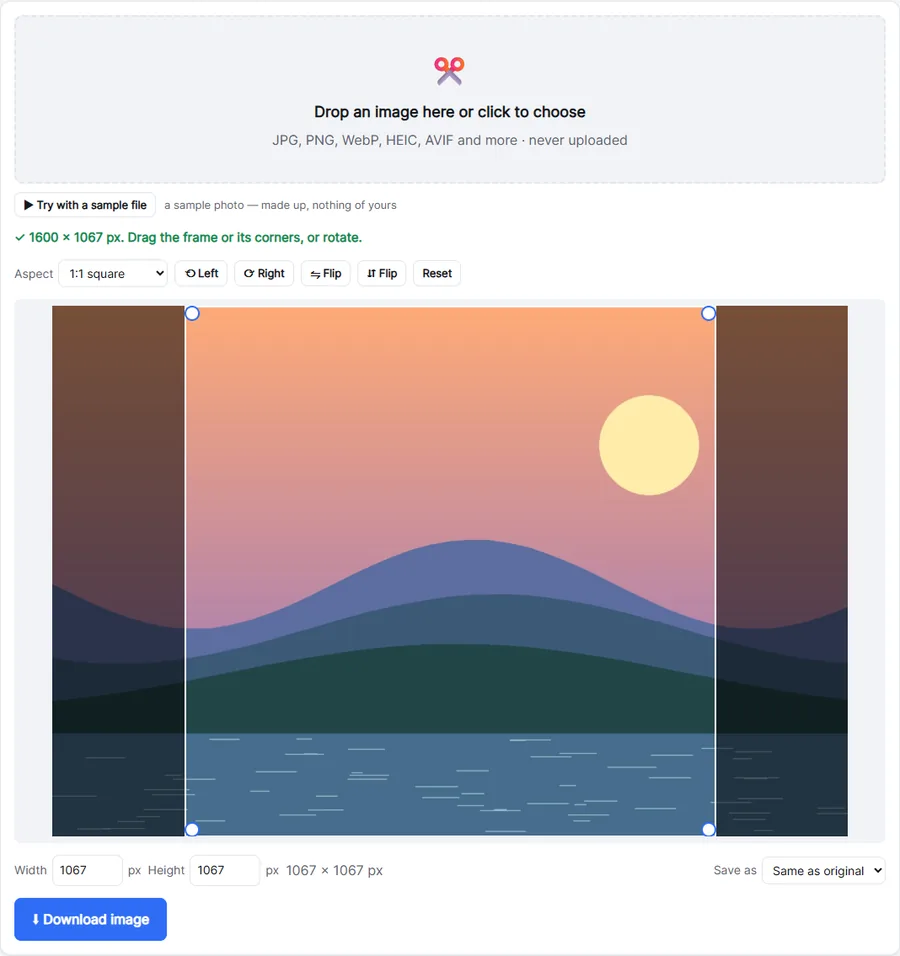
- Drag the frame, or its corners. Pick an Aspect to lock the shape, or type a width and height.
- Click Download image.
Sizes for social media
- 1:1 — profile pictures and square posts.
- 4:5 — the tallest Instagram feed post (1080 × 1350).
- 9:16 — stories, Reels, TikTok and WhatsApp status.
- 16:9 — YouTube thumbnails, presentations and website headers.
Need an exact final size, like 1080 px wide? Crop here, then use Resize Image.
No quality loss beyond the crop
Cropping keeps the original pixels of the part you keep. PNG stays lossless; JPG and WebP are saved at high quality (92). Rotate or flip the image first if it came out sideways — the buttons are above the picture.
Private by design
Your photo is edited in your browser and never uploaded. The saved copy has no camera or location data.
Troubleshooting
- The frame won't get bigger: it stops at the edge of the image, and with a fixed aspect ratio at the shorter side. Choose Free to drag it to any shape.
- The download is blurry: cropping keeps the original pixels, but a small crop of a small photo has few pixels left. Crop less, or start from the original photo.
- The photo is sideways: rotate it first with ⟲ or ⟳ above the picture, then crop.
- A PNG with transparency got a white background: that happens when you save as JPG. Choose PNG or WebP under Save as.
Exact sizes
Need precisely 1080 × 1080 for Instagram or 1280 × 720 for a YouTube thumbnail? Choose the aspect ratio, type the width and height under the picture, drag the frame to the right spot, and download. If your photo is smaller than the size you need, crop to the right shape first and enlarge it with Resize Image.
Frequently asked questions
How do I crop a picture to a square?
Choose 1:1 under Aspect, drag the frame over the part you want and download.
Can I crop to an exact size in pixels?
Yes. Type the width and height under the picture; move the frame to choose which part.
Does it work with iPhone photos?
Yes, HEIC photos open directly. Save as JPG for maximum compatibility.
Is my photo uploaded?
No. It is cropped in your browser.
How do I crop a photo on iPhone without an app?
Open this page in Safari, choose the photo, drag the frame and download — HEIC photos work too.
Is the photo location removed?
Yes. The saved image is a new file without the camera and location data of the original.