How to rearrange a PDF
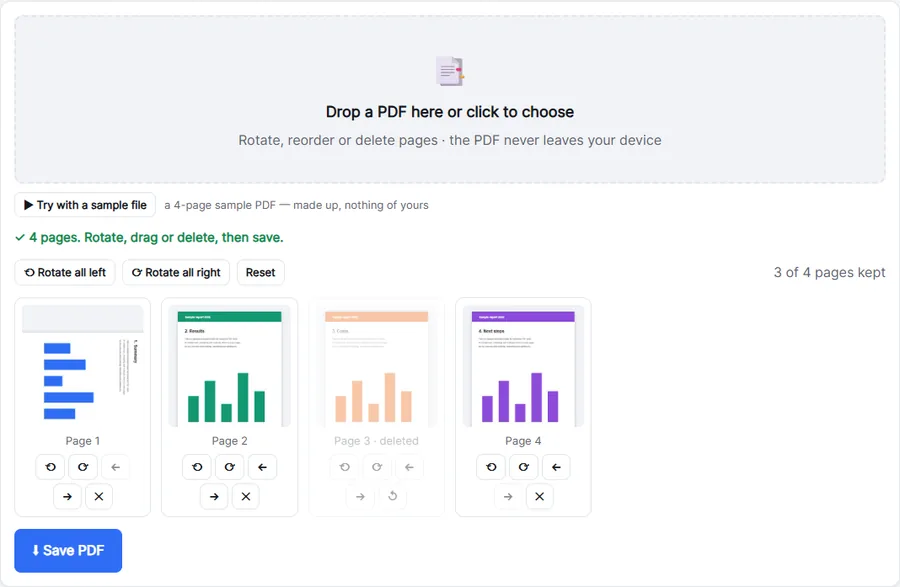
- Drop your PDF into the box. Every page appears as a thumbnail.
- Drag pages into the right order (or use ← → on a phone). Use ⟲ ⟳ to turn a page and ✕ to delete it.
- Click Save PDF. You get a new file; the original stays untouched.
What it's good for
- Scans in the wrong order — fix a stack that was fed into the scanner back to front.
- Remove blank pages or the cover sheet before sending a document.
- Put an appendix first, or move a signature page to the end.
- Combine with other tools: merge PDFs first, then put all pages in order here.
Nothing is re-compressed
Pages are copied exactly as they are: text stays selectable, links keep working and images keep their quality. Only the order, the rotation and the pages you kept change. Need separate files instead? Use Split PDF.
Private by design
The PDF is opened and saved in your browser with pdf.js and pdf-lib; it is never uploaded — safe for contracts, bank statements and IDs.
Troubleshooting
- "This PDF is password-protected": open it with the password in your PDF reader, save or print it as a new PDF, and organise that copy.
- Thumbnails appear slowly: each page is drawn on your device. A 300-page scan takes a while on a phone; you can already rearrange the first pages while the rest load.
- Dragging doesn't work on my phone: touch screens don't support drag and drop here — use the ← and → buttons under each page.
- The saved file has a different name: it ends in -edited.pdf, so you can't overwrite the original by accident.
Tips for big reorganisations
- Start from the end: moving the last pages forward first is faster than shuffling from the top.
- Several documents? Merge them first with Merge PDF, then put all pages in order here in one go.
- Need some pages as a separate file? Save the full version here, then take them out with Split PDF.
Frequently asked questions
Can I reorder PDF pages for free?
Yes. Drop the PDF, drag the pages into order and save — free, without an account or watermark.
Does the quality change?
No. Pages are copied as they are; nothing is re-compressed.
Can I undo a deletion?
Yes. A deleted page stays visible, dimmed; click ↺ to bring it back before you save.
Does it work for large PDFs?
Yes. Hundreds of pages work; the thumbnails appear one by one while the PDF is read.
Can I reorder pages in a scanned PDF?
Yes. Scans are PDFs like any other; every page appears as a thumbnail you can move.
Is the original PDF changed?
No. You download a new file; the original stays as it was.